
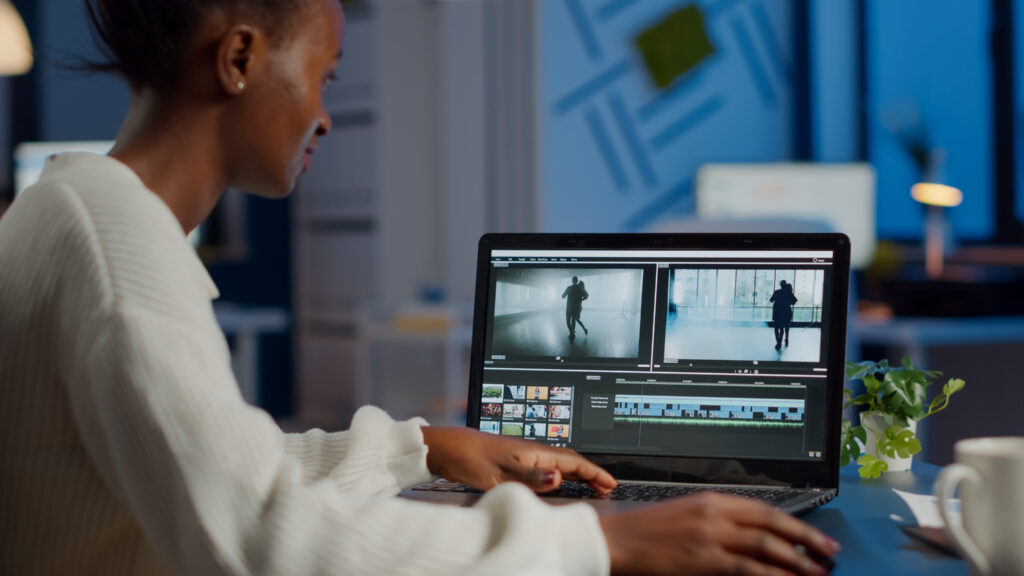
If you want to start editing videos but don’t want to spend money or deal with annoying watermarks, you’re in luck. Today, there are several free video editors that are simple to use and give clean, professional-looking results without branding on your videos.
In this blog, we’ll look at where you can find these tools and which ones are best for beginners.
- Free Desktop Video Editors (Best Quality, No Watermarks)
If you want more control and better quality editing, desktop software is the best option. These are fully free and do not add watermarks.
DaVinci Resolve
One of the most powerful free video editors used by professionals.
- No watermark
- Advanced editing tools
- Great for YouTube, business videos, and filmmaking
- Works on Windows, Mac, and Linux
Best for: People who want professional-level editing for free.
Shotcut
A simple and lightweight editor that is very beginner-friendly.
- 100% free and open-source
- No watermark
- Easy drag-and-drop editing
- Supports many video formats
Best for: Beginners who want something simple.
OpenShot
Very easy to learn, especially if you are just starting.
- No watermark
- Simple interface
- Good for basic cuts, text, and transitions
Best for: Students and beginners learning video editing.
- Free Online Video Editors (No Installation Needed)
If you don’t want to install software, online editors are a great choice.
Clipchamp
A popular browser-based editor.
- Free version available
- No watermark on basic exports
- Easy templates and drag-and-drop tools
- Works directly in your browser
Best for: Quick social media videos.
Canva Video Editor
Mostly known for design, but also great for video editing.
- Free plan available
- No watermark for many exports
- Huge library of templates, music, and effects
- Very beginner-friendly
Best for: Social media posts, ads, and short videos.
- Mobile Video Editors (Editing on Phone)
If you prefer editing on your phone, there are also great free apps.
CapCut
One of the most popular mobile editors today.
- No watermark on most exports
- Easy auto-editing tools
- Great effects and transitions
- Works on Android and iOS
Best for: TikTok, Instagram Reels, and short videos.
Are watermark-free video editors safe to use?
Yes, watermark-free video editors can be safe to use, but it depends on which one you choose.
Here’s a simple breakdown:
When they are safe
Watermark-free editors are usually safe if:
- They are from trusted companies or well-known developers
- You may install them from app stores or the official websites.
- These are well-known programs like OpenShot, Shotcut, and DaVinci Resolve.
Many of these are open-source or professional tools that don’t need watermarks at all and are widely used by creators.
When they can be risky
Be careful if:
- The software is from a random website or unknown source
- “100% free no watermark + premium features unlocked” is what it offers.
- It asks you to install extra apps or extensions
- It looks pirated or cracked
These can sometimes contain:
- Malware or viruses
- Data tracking software
- Fake “free” versions that later charge you
Some “free” editors also hide limits or try to push you into paid plans later.
Can I use watermark-free videos for business or YouTube?
Yes, you can use watermark-free videos for YouTube and business safely.
Just make sure:
- The video editor is legal and not cracked
- It allows commercial use
- You have rights to any music or clips used
Watermark-free videos actually look more professional and are better for branding and marketing.
Conclusion
Finding an easy free video editor without watermarks is not difficult anymore. You just need to choose the one that matches your needs:
- Want professional work? → DaVinci Resolve
- Want simple editing? → Shotcut or OpenShot
- Want online editing? → Clipchamp or Canva
- Want mobile editing? → CapCut
All of these tools let you create clean, watermark-free videos without spending money. Just pick one and start practicing the more you edit, the better your videos will become.