
If you’re creating videos but don’t want to invest in heavy software or long workflows just yet, free web-based video editors are a great place to start. In this blog we’ll walk through: an overview of what these free editors do, compare some popular platforms, show what features make them worth using, review the pros and cons of browser-based editing, dig into export quality and file format options, and finish with the best free sites for social-media-ready videos. And we’ll talk about how an agency like Spledit can step in when your needs outgrow “free and DIY”.
Overview of Free Web-Based Video Editors
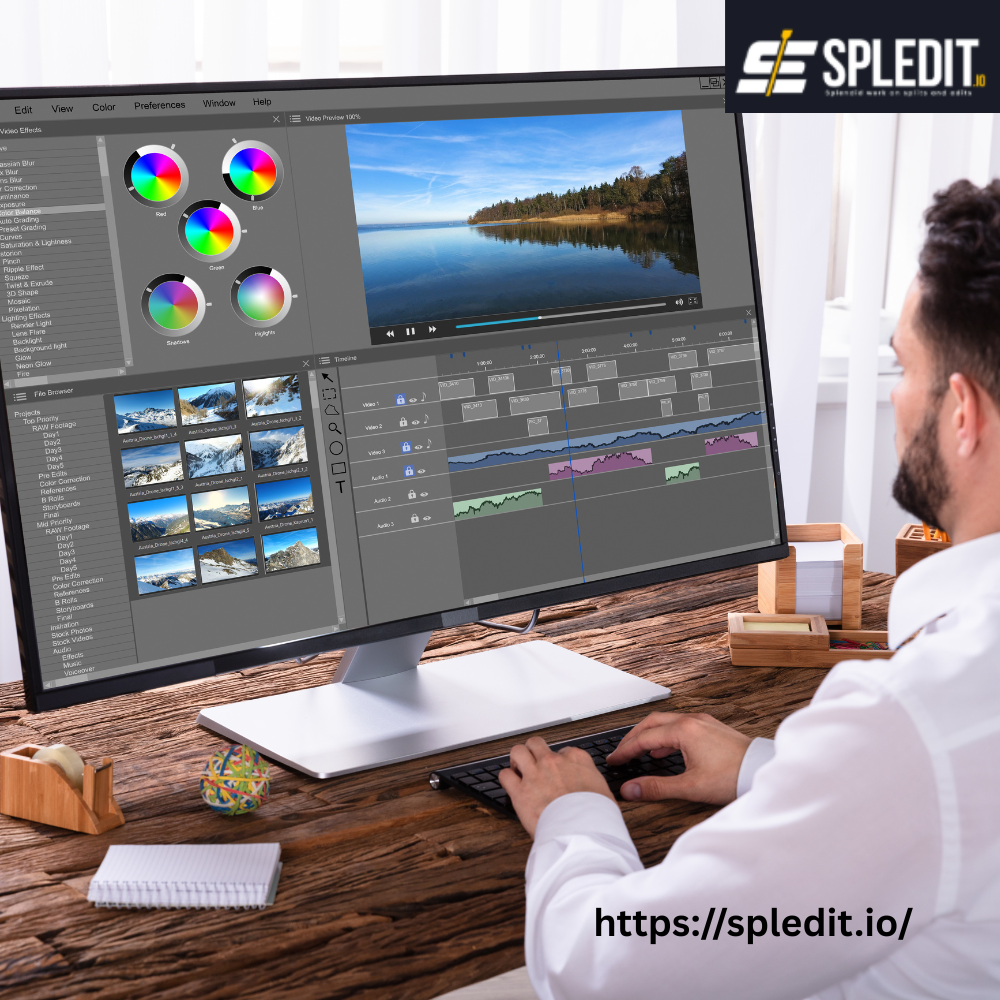
In the past you often had to download heavy software to edit videos. These days, many editing tools run entirely in a web browser — no install, often free tier, and good enough for a lot of use-cases. These “web-based video editors” let you upload clips, trim, add graphics/text, transitions, music, often directly in the browser.
For example: platforms like Kapwing let you drag-and-drop footage, apply captions and effects, and export without installing software. Kapwing Another example: Clipchamp runs in the browser (and integrates with Windows in some cases) and offers templates, trimming tools, stock assets.
Why this matters: If you’re creating content for YouTube, Instagram, TikTok or other platforms, you may not need pro-grade software at first. A free editor can help you get started, test your workflow, and measure results without a big up-front budget. Then when you’re ready to scale (more videos, higher quality, faster turnaround, branding consistency) that’s when a full service like Spledit can make sense.
Comparison of Popular Free Editing Platforms
Let’s compare some of the free web editors you’ll run into — what they offer, and what you should watch out for.
Kapwing: Good for browser-based editing with many features including AI-driven tools (e.g., subtitles, resizing, translations) all in one place. It supports trimming, adding effects, and exporting straight from the browser.
Clipchamp: Offers a strong web-editor tool set, templates, stock assets, brand kit tools. Designed more for generic creators and social media.
Veed: Also browser-based, with drag-and-drop, subtitle generation, and tools for repurposing content to social media formats.
Canva Video Editor: Though known for graphics, its video editing features are growing: drag-and-drop video timelines, motion graphics, text overlays.
CapCut (Online): Web version offers smart features, good for social media video creation, including speech-to-text, background removal etc.
Now, while each of these is useful, they also differ in capabilities (multi-track editing, advanced color/grade, export formats) and there may be limitations in free tiers (watermarks, restricted resolution, limited assets).
When comparing you’ll want to check: can you edit multiple tracks, add overlays/graphics, export in full HD (1080p or more), is there a watermark in the free version, are there templates for your platform, and how easy is the workflow.
Features That Make an Online Editor Worth Using
When you’re evaluating free editors (or thinking ahead to when you maybe partner with Spledit), here are features that make a big difference.
-
Timeline / multi-track editing – Even basic tracing where you can layer audio, text, B-roll makes a big difference in quality.
-
Templates & aspect-ratios – Social media now means landscape (16:9), portrait (9:16), square (1:1). Good editors let you choose or switch ratios easily.
-
Text & graphics overlays / motion graphics – Lower thirds, titles, captions, animations help your video look polished.
-
Audio tools – Good sound is critical. Features like noise reduction, music track licensing, balancing voice and background improve the experience.
-
Export quality / formats – You’ll want full HD (1080p) or more, and common formats (MP4/H.264) that YouTube, Instagram etc. accept.
-
Ease of use + workflow – If you’re editing yourself, ease matters. Drag-and-drop, preview, simple UI speed things up.
-
Brand consistency tools – If you’re serious, you’ll want your intros/outros, logo, color palette, lower-thirds to be consistent. Free editors that let you save brand kits save time.
-
Repurposing tools – For example a long-form video edited into shorter clips (for social) or converting for reels/shorts. Many web editors now support that.
-
Collaboration & cloud storage – If you have a team or outsource, editors that support shared workspaces, comments, versioning, cloud saving are helpful.
-
No or minimal watermark on free version – Some free editors put a watermark on exports; if you’re using it for your brand it’s worth checking.
If you find an online editor that hits many of these for free, it’s a great tool. But at some point you may outgrow it (more videos, higher quality, need dedicated branding workflows, faster turnaround). That’s where a service like Spledit can help — bridging the gap between DIY and full-scale production.
Pros and Cons of Browser-Based Editing
Weighing the pros and cons will help you decide when to use a free web editor and when to escalate to a paid service.
Pros
-
Low or no cost: Free plans let you get started without heavy investment.
-
No install: Works in browser, no large downloads, beneficial for less powerful computers or remote work.
-
Fast workflows: Because tools are simplified, you can often edit quicker and post more often.
-
Accessibility: Good for beginners, less editing-experience required.
-
Flexibility for social content: Helps you generate reels, short clips, vertical formats easily.
-
Anywhere access: Because it’s cloud/browser, you can edit from different devices or collaborate.
Cons
-
Limited depth / advanced features: Browser editors often don’t match full-desktop software for advanced color grading, heavy effects, complex layering.
-
Performance/lag issues: With large files, high resolution or many edits, browser tools might struggle, especially on weaker machines or slower internet.
-
Watermarks / free-tier restrictions: Free plans may limit export quality, number of projects, add watermarks, or limit stock assets.
-
Less control: Some tools may restrict bitrate, frame rate, or export formats which may affect professional output.
-
Data/privacy concerns: Some editors process in cloud; if your footage is sensitive, you’ll want to check how data is handled.
-
Scalability: If you need to upload many videos per week, manage brand consistency, repurpose content, you might hit workflow limits.
In short: browser-based editing is excellent for starting, testing, smaller projects, social content. But if your channel or brand grows, you’ll likely need more robust workflows, and that’s when dedicated services (like Spledit) become worthwhile.
Export Quality and File Format Options
Even if you’re editing for free in a browser, you need to pay attention to how you export your videos — because your audience and platform expect certain standards. Here are key factors:
Resolution & Quality
Ideally you should export at least 1080p (Full HD) for YouTube, and higher if possible (4K) depending on your source footage. Some free editors limit you to lower resolution or add watermarks. Platforms like Clipchamp, Kapwing and others support HD exports in their free tiers or low-cost tiers.
Format & Codec
The most universal format is MP4 with H.264 codec (and AAC audio). Make sure your editor supports that (which most do). Also check target platform requirements (YouTube supports many formats, but simpler is safer). Browser editors like Kapwing support popular formats.
Bitrate & Frame Rate
Higher bitrate improves quality, especially if your video has motion. If you’re doing screen capture, tutorials, or fast action, you want 30fps at minimum, and maybe 60fps if it’s gaming or high motion. Export settings matter. Some free editors may not allow bitrate adjustments or upper frame-rates.
Aspect Ratio & Social Formats
If you’re creating for social media (Instagram Reels, TikTok, YouTube Shorts) you’ll want options like 9:16 (vertical), 1:1 (square) or 16:9 (landscape). Many browser-editors now include easy “resize for platform” or presets. Clipchamp, for example, offers these.
Color Depth / Audio Quality
While many free editors will suffice, if you shoot high-end footage (4K, high frame-rate, LUTs, high quality audio) you may find free editors lacking in advanced color grading, audio mixing, or export fidelity. This is one reason to upgrade when quality becomes important. Our Portfolio
Watermarks / Branding Limitations
Always check if the free version adds a watermark, or limits export time, or restricts branding. That can impact how professional your content appears. If you’re building a brand, this is a key decision point to either upgrade or partner with a full service.
Best Free Sites for Social Media Video Creation
If your focus is social media (YouTube, Instagram, TikTok) here are strong free web video editors worth trying — and how they fit into a bigger workflow including premium services like Spledit.
Kapwing
Great for DIY creators who want to edit online, fast. Edit anywhere, browser-based, strong social-media features (resizing, subtitles, templates). Good first step before you scale.
Clipchamp
User-friendly, templates, social-friendly formats built in; good for beginners. If you’re creating simple vlogs, tutorials or promotional videos that don’t need heavy post production, this is solid.
VEED
Offers drag-and-drop simplicity, subtitles, social formats, decent free tier. If you’re creating clips and short-form content, this works well.
Canva Video Editor
If you’re already using Canva for graphics, it’s handy to use its video editing features. Simplified editing, good for creators whose main strength is content and branding rather than deep post-production.
CapCut (Online)
Especially strong for social media meditation—text overlays, filters, one-click effects. If you shoot with your phone and want to produce vertical content quickly, this is a strong pick.
How Spledit Fits In
While free web-based editors are great, there comes a point where you may need more: higher production quality, consistent branding, faster turnaround, multi-format packaging, channel optimization, or simply more output than you can manage. That’s where an agency like Spledit comes into play.
Here’s how Spledit complements your free-editor workflow:
-
After using a free editor to test topics and formats and find what works, you can hand off your “winning” videos to Spledit for high-level polish — better graphics, consistent branding, high production value.
-
If you’re posting high-volume content (e.g., weekly YouTube videos + Shorts + social reach) Spledit can manage the workflow, perhaps using free editors for smaller clips and Spledit for main channel video.
-
For creators or brands that want to scale (monetize, run ads, grow audience aggressively), Spledit offers the professional infrastructure: team, turnaround times, quality control, optimization.
-
Using free editors keeps costs low when you’re starting, and when growth happens you move to Spledit and your investment in editing becomes strategic rather than just “doing whatever”.
In other words: use free web-based editing to get started, experiment, build audience; when you’re ready to level up, bring in Spledit.
Free web-based video editors are a powerful entry point for U.S. creators and businesses who want to produce video content without heavy investment. They offer ease of use, no-install convenience, social-friendly formats, and a way to test content and workflow while you grow. At the same time, they have limitations in scalability, depth of editing features, export quality in some cases, and may include freemium restrictions.
As your channel, brand or volume of content grows, you might find that you need: consistent brand identity, faster turnaround, multi-format output, higher production value and workflow management. That’s when a service like Spledit becomes a strategic partner rather than just an editor.
If you’re starting out, pick one of the free editors above, try building a short video, export it, post it, see the metrics. Then reflect: Do you want better graphics? Faster output? More uploads? If yes — that signals “time to level up”.
Frequently Ask Questions
1. Are free video editing websites safe to use?
Most reputable online editors are safe, but always double-check privacy policies before uploading sensitive footage. Stick with trusted platforms that use secure connections.
2. Do free video editors add watermarks to my videos?
Some do. Many platforms keep their free plans watermark-only, while others like Clipchamp or Canva let you export clean videos at lower resolutions. Always review the export options before editing.
3. Can I use free editors for YouTube videos?
Yes. Many creators use browser-based editors for trimming, captions, and quick uploads. As your channel grows, you can upgrade or move to professional services like Spledit for higher production quality.
4. What’s the difference between web-based editors and desktop software?
Web editors run in your browser—no downloads needed—while desktop apps offer more advanced tools and faster performance for large projects. Web tools are great for convenience and quick edits.
5. What formats can I export videos in using free editors?
Most free online editors export in MP4 using the H.264 codec, which works on YouTube, TikTok, and Instagram. Some allow additional options like MOV or WebM depending on your settings.
6. When should I switch from a free editor to a paid service like Spledit?
If you’re uploading regularly, need consistent branding, faster turnarounds, or want to scale your channel, that’s when a professional editing team like Spledit becomes a smart investment.