
Creating a successful YouTube channel takes more than just recording videos. Editing is what transforms raw footage into professional, engaging content that keeps viewers coming back. Whether you’re a creator just starting out or a business using YouTube to reach customers in the USA, professional editing can make all the difference. Spleddit provides YouTube video editing service that save time, improve quality, and help your content stand out.
Online YouTube Video Editing Service
Online video editing services give creators flexibility. Instead of struggling with complex software or learning advanced editing skills, you can outsource the work to professionals. Spleddit’s online YouTube video editing service makes it easy: simply upload your footage, share your vision, and let the editors do the rest.
Some of the benefits include:
- Time-saving: Focus on filming and growing your channel while professionals handle the editing.
- Consistency: Your videos maintain a polished, uniform look.
- Creativity: Editors can add effects, transitions, and animations that elevate your content.
With online services, you don’t need to be in the same location as your editor. Everything is done virtually, which is ideal for creators across the USA.
YouTube Video Editing Service Near Me
Many creators search for “YouTube video editing service near me” because they want local support. While having a nearby editor can be useful, it’s not always necessary. With Spleddit, you don’t have to limit yourself to local options—you can access skilled editors nationwide. Files are transferred digitally, and communication is handled online, so you get the best results no matter where you are in the USA.
However, if face-to-face collaboration is important to you, local services can still work. Just remember, the most important factor is quality, not proximity.
Video Editing Services for YouTube Channel
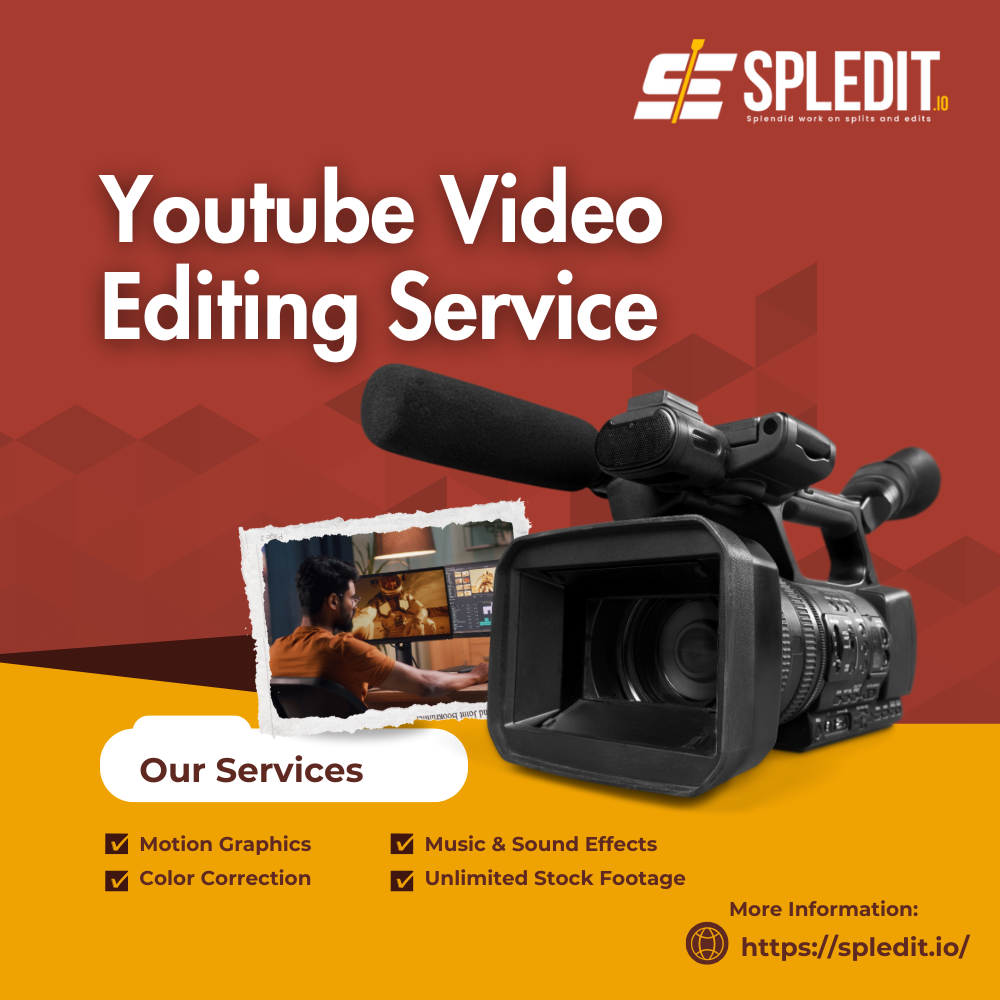
Every YouTube channel is unique. A gaming channel has different needs than a cooking channel or a corporate brand. That’s why tailored editing services are essential. Spleddit’s YouTube video editing service cover:
- Basic Cuts and Trims: Removing mistakes and keeping content concise.
- Color Grading: Giving your videos a consistent, professional look.
- Sound Editing: Balancing audio, adding background music, and syncing sound effects.
- Graphics and Titles: Custom intros, outros, lower thirds, and call-to-actions.
- Special Effects: Animations, transitions, and visual effects.
By using professional editing, you can strengthen your channel’s identity, increase watch time, and improve audience retention.
YouTube Video Editing Agency
For creators and businesses looking for a more comprehensive approach, a YouTube video editing agency offers full-service solutions. Instead of just editing footage, agencies can handle:
- Content strategy: Helping you plan what types of videos to create.
- Branding: Ensuring all your content matches your channel’s look and feel.
- Thumbnails and SEO: Designing eye-catching thumbnails and optimizing metadata for growth.
Spleddit works like an agency by not only editing but also guiding creators to succeed on YouTube. For businesses in the USA, this is especially valuable because you can maintain a consistent brand presence across multiple videos.
Is YouTube Video Editor Still Available?
YouTube used to have a built-in editor where creators could trim clips, add music, and make basic adjustments. However, the original YouTube Editor was discontinued in 2017. Today, YouTube only offers a few simple tools like trimming and blurring inside YouTube Studio.
If you want advanced editing, you need third-party software or professional services. That’s where platforms like Spleddit come in. Instead of trying to make do with limited tools, you can get professional editing tailored to your channel’s needs.
YouTube Video Editing Service Online
Online video editing services are the most accessible and practical solution for YouTubers today. Instead of spending hours learning programs like Adobe Premiere or Final Cut Pro, you can rely on experts who already know the craft. Here’s how Spleddit’s online YouTube video editing service works:
- Upload your footage to the secure platform.
- Provide instructions about your vision, style, and preferences.
- Get edited videos delivered quickly and ready to upload.
Whether you need one-off edits or ongoing support for your channel, online editing saves time and ensures quality. This is especially helpful for creators in the USA who want professional results without hiring an in-house editor.
Editing is the backbone of every successful YouTube video. While filming captures the content, editing shapes it into something watchable and engaging. For creators and businesses in the USA, Spleddit provides professional YouTube video editing service that make the process easier, faster, and more effective.
Whether you’re looking for an online service, a full editing agency, or just help trimming clips, Spleddit has the tools and expertise to elevate your YouTube channel.
Frequently Ask Questions
Q. Why should I use a YouTube video editing service instead of editing myself?
A professional service saves time, improves video quality, and helps your channel grow faster with polished, engaging content.
Q. Can I still edit videos directly on YouTube?
YouTube only offers basic trimming and blurring tools. For advanced editing, you’ll need third-party software or a service like Spleddit.
Q. How much do YouTube video editing services cost?
Costs vary depending on video length, complexity, and service level. Spleddit offers flexible pricing to fit different creators’ needs.
Q. Do editing services include music and sound effects?
Yes. Many services, including Spleddit, can add royalty-free music and sound effects to make your videos more professional.
Q. Can I use a video editing service even if I’m not a business?
Absolutely. Whether you’re a vlogger, gamer, or small business, editing services are designed for all types of YouTube creators.
Q. How do I send my footage to an online editing service?
Most services, like Spleddit, use secure online uploads. You simply send your raw files, give instructions, and receive your finished video.